Table of contents
Quick answer
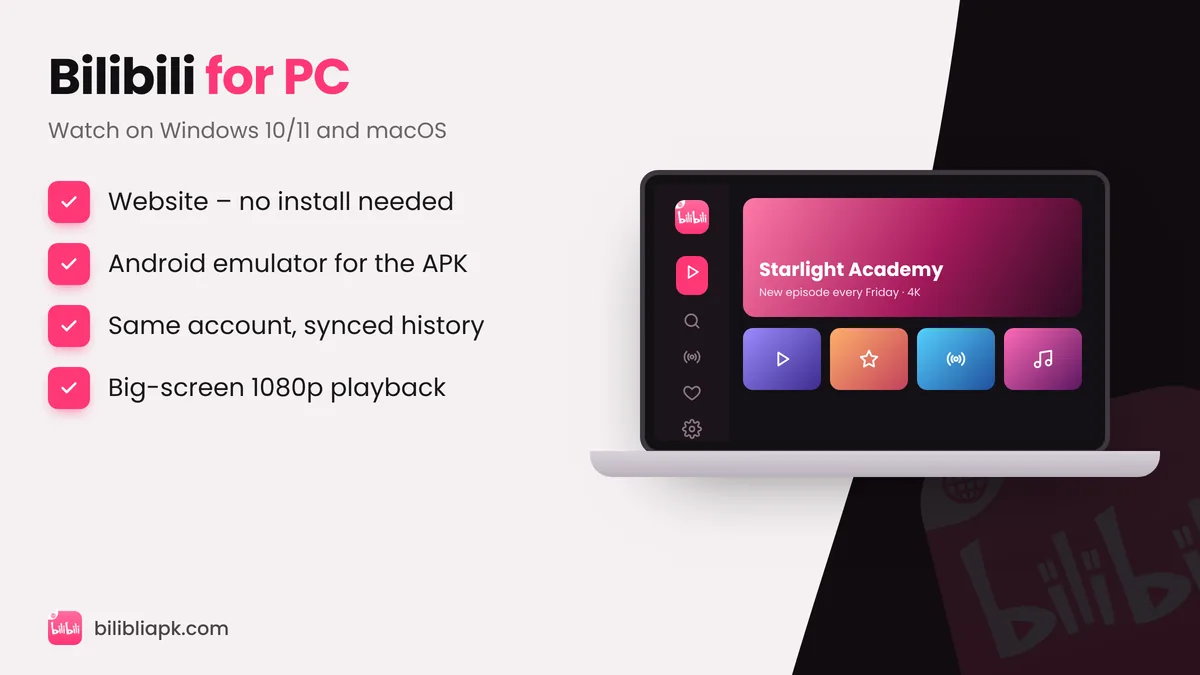
To use Bilibili on PC, open bilibili.tv in Chrome, Edge or Safari – no install needed. If you want the Android app experience (offline downloads, app-only features), install an Android emulator such as BlueStacks or LDPlayer and drag the Bilibili APK into it. Microsoft's own Android subsystem for Windows 11 was discontinued in March 2025, so an emulator is now the practical option.
Method 1: Watch on the Bilibili Website
The quickest way on any Windows PC, Mac or Chromebook:
- Open your browser and go to bilibili.tv (the international site).
- Click Log in and use the same account as on your phone.
- Choose your language from the menu and start watching.
The website is light, works on low-end laptops and keeps your history in sync. It does not support the app's offline downloads.
Method 2: Run Bilibili APK with an Android Emulator
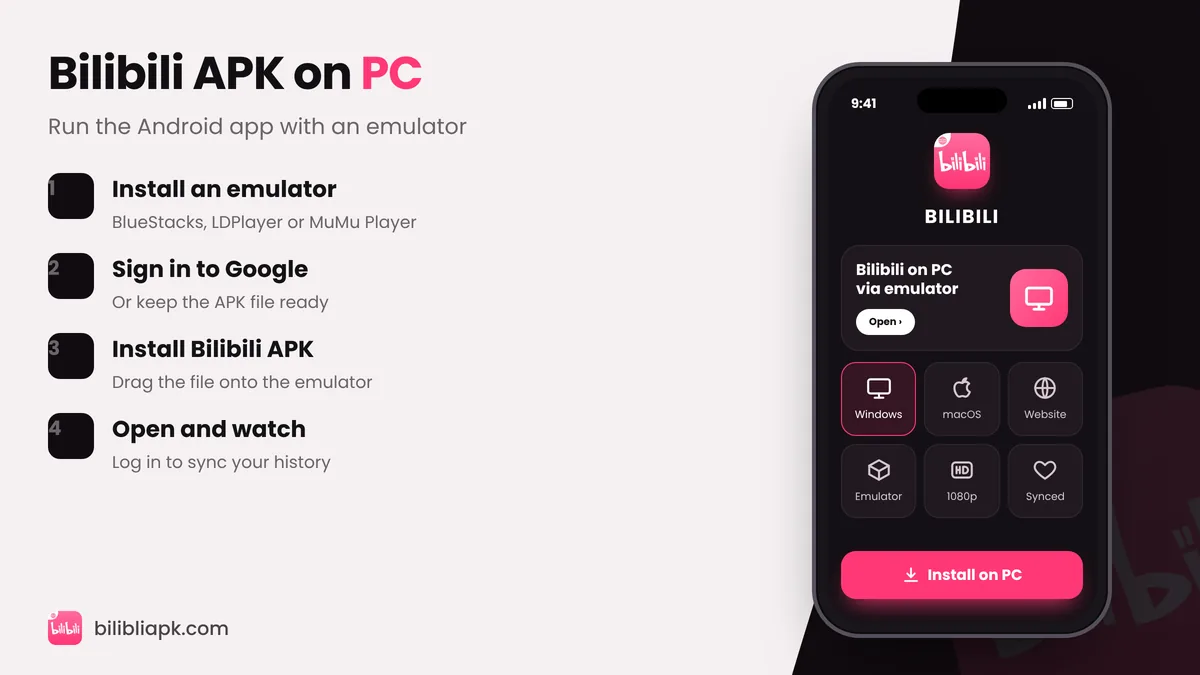
- Install an emulator. Download BlueStacks, LDPlayer or MuMu Player from their official websites and install it.
- Enable virtualization. If the emulator is slow, turn on Intel VT-x / AMD-V in your BIOS – most emulators show a guide.
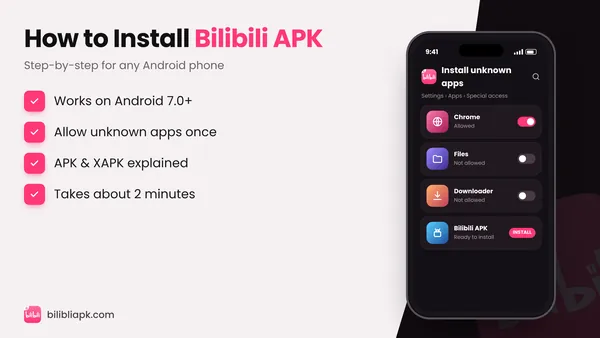
- Install Bilibili. Either sign in to Google Play inside the emulator and search "bilibili", or download the Bilibili APK v3.83.1 and drag the file onto the emulator window.
- Open and log in. Use your account to sync favourites and history.
Best emulators for Bilibili
| Emulator | Works on | Good for |
|---|---|---|
| BlueStacks | Windows 10/11, Apple-silicon Macs | Easiest setup, Play Store built in |
| LDPlayer | Windows | Light on low-end PCs |
| MuMu Player | Windows, Mac | Smooth video playback |
PC Requirements
- Windows 10 or 11 (64-bit) or a recent macOS version
- 4 GB RAM minimum, 8 GB recommended for an emulator
- 5 GB free disk space for the emulator plus app
- Virtualization enabled for good performance
Website vs Emulator: Which Should You Use?
Website
- No install, works everywhere
- Very light on RAM
- Instant start
Emulator + APK
- Full app features and offline downloads
- Heavier – needs 4–8 GB RAM
- Takes 10 minutes to set up
Watching on a TV Instead?
If your goal is the big screen, the Bilibili TV APK on an Android TV stick is smoother than a laptop connected by HDMI. On iPhone or iPad, follow the Bilibili for iOS guide.