Table of contents
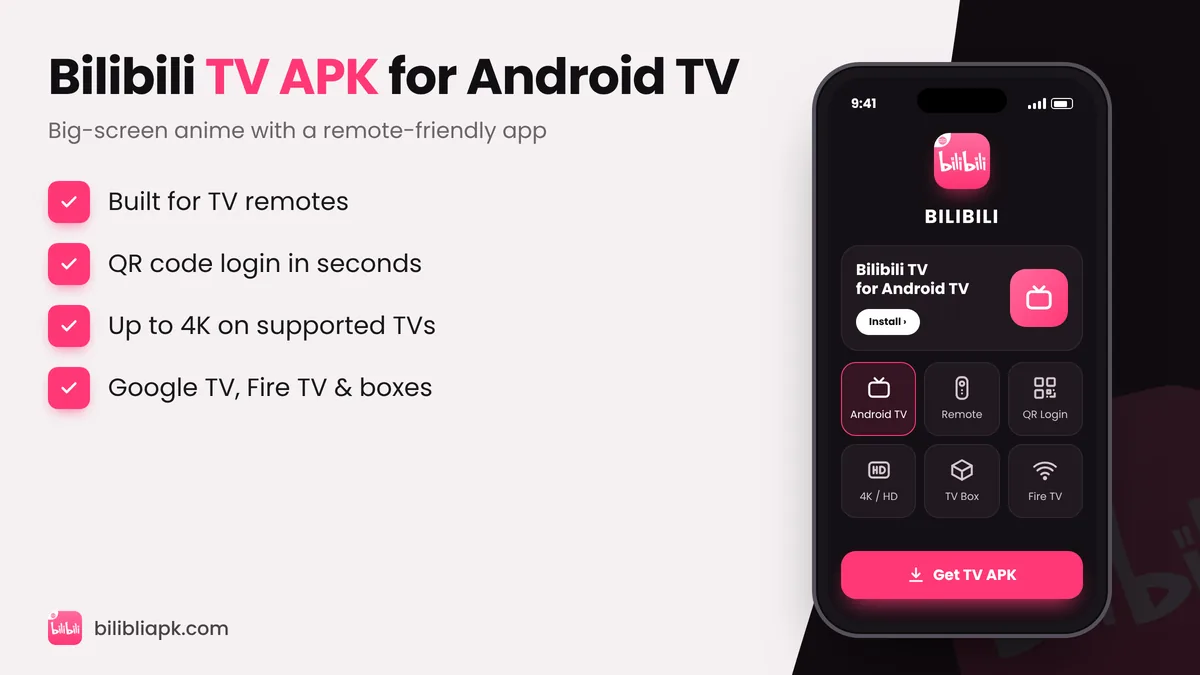
Bilibili TV APK is the big-screen version of Bilibili (package com.bstar.intl.tv) made for Android TV, Google TV and TV boxes. Install it from the Play Store on your TV, or sideload the APK with the free Downloader app or a USB drive. After installing, sign in – the TV app usually shows a QR code you scan with the Bilibili app on your phone.
The normal Bilibili APK is designed for touchscreens. On a TV it shows a stretched phone layout and is hard to control with a remote. The TV build fixes that with a sidebar menu, large posters, remote-friendly navigation and support for higher resolutions on capable TVs. If you watch anime on a smart TV, Mi Box, Fire TV Stick, Chromecast with Google TV or a cheap Android box, this is the version you want.
Bilibili TV APK vs Phone APK
| Feature | Bilibili TV APK | Phone APK |
|---|---|---|
| Package name | com.bstar.intl.tv | com.bstar.intl |
| Made for | Android TV, Google TV, TV boxes | Phones and tablets |
| Control | TV remote / D-pad | Touchscreen |
| Login | QR code from your phone | Email, phone or social login |
| Comments and uploads | Watching focused | Full community features |
Both apps use the same account, so your watch history, favourites and Premium plan carry over between your phone and TV.
Supported TVs and Devices
- Android TV and Google TV sets from Sony, TCL, Hisense, Philips, Xiaomi and others
- Streaming sticks and boxes: Chromecast with Google TV, Xiaomi Mi Box / Mi TV Stick, Nvidia Shield, generic Android TV boxes
- Amazon Fire TV Stick and Fire TV (Fire OS is based on Android, so the APK can be sideloaded)
- Projectors that run Android TV
Not supported: Samsung (Tizen) and LG (webOS) TVs cannot install APK files. Use screen casting from your phone, or plug in an Android TV stick.
How to Install Bilibili TV APK on Android TV
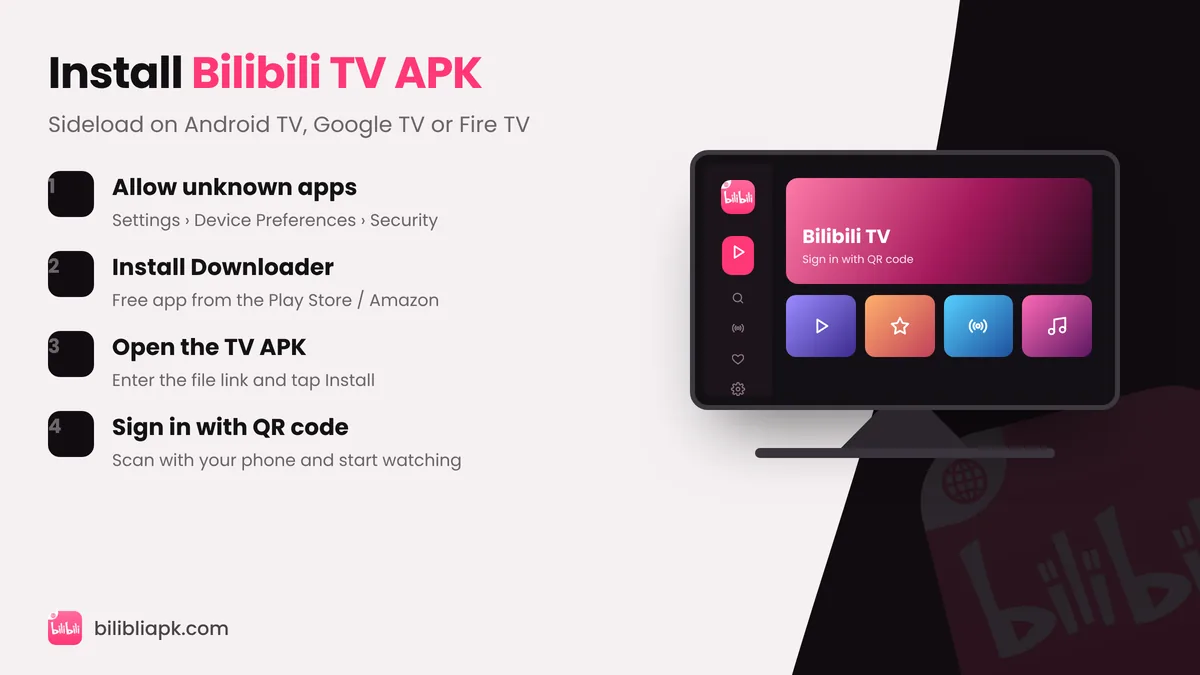
Method 1: From the Play Store (easiest)
- Open the Google Play Store on your TV.
- Search with the voice remote for "bilibili".
- Select the TV app and press Install. If it does not appear, your TV or region is not listed – use Method 2.
Method 2: Sideload with the Downloader app
- Install Downloader (by AFTVnews) from the Play Store or Amazon Appstore.
- Go to Settings › Device Preferences › Security & restrictions › Unknown sources and allow Downloader. On Fire TV: Settings › My Fire TV › Developer options › Install unknown apps.
- Open Downloader, enter the Bilibili TV APK link and press Go.
- When the file finishes, select Install, then Open.
Method 3: Install from a USB drive
- Download the TV APK on your computer and copy it to a USB stick.
- Plug the stick into your TV or box and open it with a file manager such as File Commander or X-plore.
- Select the APK and press Install.
How to Log In on Bilibili TV
Typing a password with a remote is painful, so the TV app usually offers QR-code login:
- Open Bilibili on the TV and choose Log in. A QR code appears.
- Open the Bilibili app on your phone (install the Bilibili APK first if needed) and tap the scan icon.
- Scan the code and confirm. Your TV is now signed in with the same account.
Best Settings for Watching Anime on TV
- Video quality: set the highest quality your internet allows – 1080p needs a steady 10 Mbps or more.
- Subtitles: choose English (or your language) from the player's subtitle menu; it stays saved for next episodes.
- Danmaku: on a large screen bullet comments can be distracting – turn them off or lower their opacity.
- Wi-Fi: use 5 GHz Wi-Fi or Ethernet on TV boxes to avoid buffering.
Bilibili TV APK Not Working?
- "App not installed": uninstall any older TV build first, then install again.
- App opens in phone layout: you installed the phone APK – remove it and install the TV version (com.bstar.intl.tv).
- Black screen or buffering: clear the app cache in Settings › Apps › bilibili › Clear cache and lower the quality.
- Remote not responding in menus: update to the latest TV build and restart the TV or box.
More fixes are in our Bilibili not working guide. Want to watch on a laptop instead? See Bilibili for PC.